
The best discounts are the ones you don’t have to manage yourself.
A lot of WooCommerce store owners want bulk pricing, VIP deals, and smart promotions, but they get stuck because they assume this needs custom code or manual edits.
Instead, I recommend setting dynamic pricing rules that apply automatically at checkout, so customers see the right deal at the right time.
In this guide, I’ll walk you through my proven methods for how to set up WooCommerce dynamic pricing. This includes quantity discounts, role-based pricing, and advanced rules you can reuse anytime you run a promotion.
Why Use Dynamic Pricing in WooCommerce?
Setting up dynamic pricing in WooCommerce means your product prices automatically change based on conditions like cart quantity, user role, or the time of purchase. It lets you create flexible pricing rules in your online store instead of offering the same price to every customer.
This matters because customers are more likely to complete a purchase when they feel rewarded for buying more or for being a loyal customer. At the same time, you keep full control over your profit margins since the discount rules only apply when specific conditions are met.
With the right plugin, you can set up rules like:
Bulk discounts (e.g., “Buy 3 or more and get 15% off”)
BOGO deals (Buy one, get one free or discounted)
Time-limited offers (flash sales that expire after a set time)
Role-based pricing (special prices for wholesale customers or members)
Cart-based rules (e.g., “Get 10% off orders over $100”)
WooCommerce doesn’t include this kind of pricing out of the box, but I’ll show you how easy it is to set up. Plus, I’ll share some bonus tips on how to promote your new discounts for maximum sales.
You can use the links below to jump to the method of your choice:
Method 1: Using the YITH Dynamic Pricing Plugin (Recommended)
The premium YITH WooCommerce Dynamic Pricing and Discounts plugin gives you complete control over how and when you offer deals in your store.
It’s ideal for store owners who want to run advanced promotions like:
Buy 2, get 1 free (2×1), Buy 3, pay for 2 (3×2)
BOGO offers and Buy X, Get Y Free
Quantity-based discounts (e.g., 20% off when buying 5+)
User role-specific pricing (e.g., wholesalers, members)
Cart-based deals, free gifts, and free shipping
Black Friday flash sales
Checkout-only promotions
Overall, this tool is ideal for setting multiple dynamic pricing rules that work together, even in complex use cases.
Step 1: Install and Activate the Plugin
First, you need to install and activate the YITH WooCommerce Dynamic Pricing & Discounts plugin. For details, see our tutorial on how to install a WordPress plugin.
Note: YITH Dynamic Pricing is a premium plugin. While there is no free version, its powerful features are well worth the investment for growing online stores.
Step 2: Add Dynamic Pricing Rules
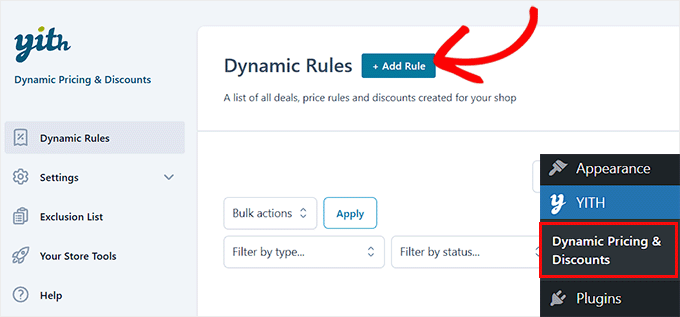
Upon activation, visit the YITH » Dynamic Pricing & Discounts page from the WordPress dashboard and click the ‘+ Add Rule’ button.
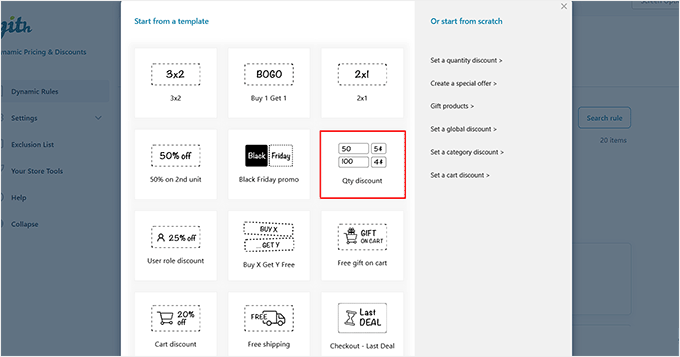
This will open a popup where you can choose from several pre-made templates for common discount types. I’ve found them to be really helpful when you want to get started quickly without configuring everything from scratch.
For example, if you want to offer a discount based on how many items a customer adds to their cart, just choose the ‘Quantity Discount’ template.
In this tutorial, I’ll be walking you through this specific template, but the setup process for other dynamic pricing rules is very similar.
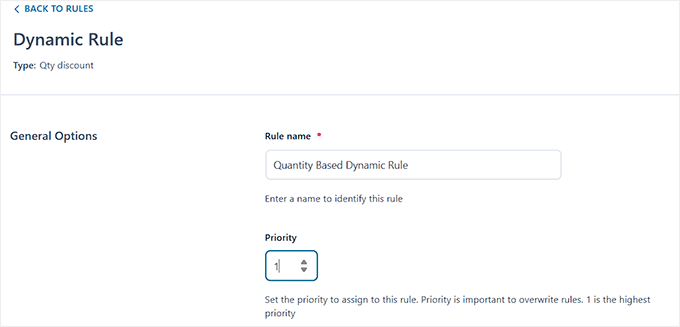
Once you do that, you’ll be taken to the rule setup screen.
Rule setup quick reference:
Name: Use a short, descriptive name so you can easily find the rule later.
Priority: Lower numbers run first. A rule with priority 1 will override a rule with priority 10.
Overlapping rules: If multiple rules apply to the same product, only the highest-priority rule is used.
Example:
Because the BOGO deal has a higher priority (a lower number), it overrides the store-wide discount for t-shirts.
Step 3: Set Triggers for Your Pricing Rule
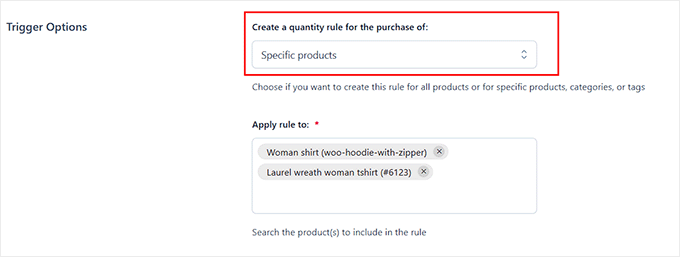
Now, scroll down to the ‘Trigger’ section to choose where this rule will apply. You can apply it to:
All products in the store
Specific product categories
Products with certain tags
Individual products
If you choose specific products, then a new field will appear where you can manually select the exact products you want this discount to apply to.
I recommend this option when you want to run deals on seasonal collections or slow-moving inventory.
Step 4: Configure Pricing Rules
After that, move to the ‘Rule Configuration’ section. This is where you define exactly how the pricing will work.
There are two main options here:
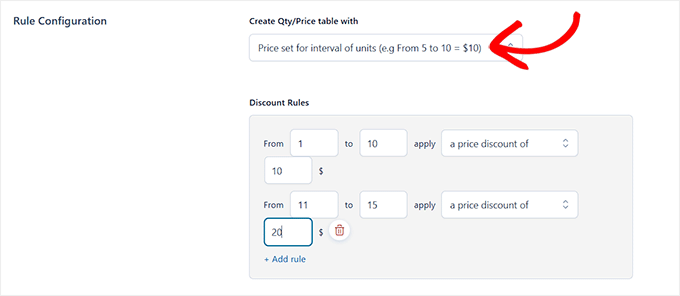
Next, under the ‘Rule Application’ section, you can decide who should get this discount. You can make it available to all customers or only specific user roles (like wholesale customers, subscribers, or VIP members).
You can even exclude certain roles or users if needed. For instance, if you want this discount to apply only to logged-in members and not guests, you can set that here.
Step 5: Publish Dynamic Pricing Rules
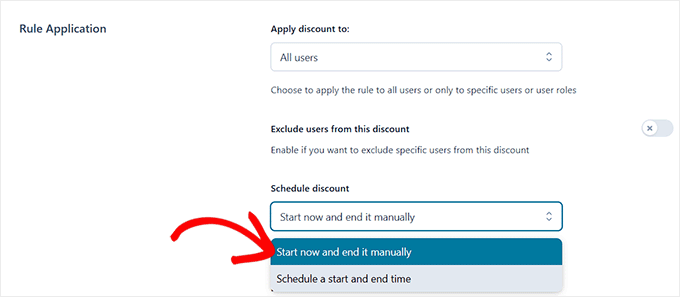
Once that is done, you can scroll down to schedule your discount.
By default, the discount will be active as soon as you save the rule and will remain so until you manually turn it off.
But if you’re planning a time-sensitive sale—like for Black Friday—you can set a start and end date here.
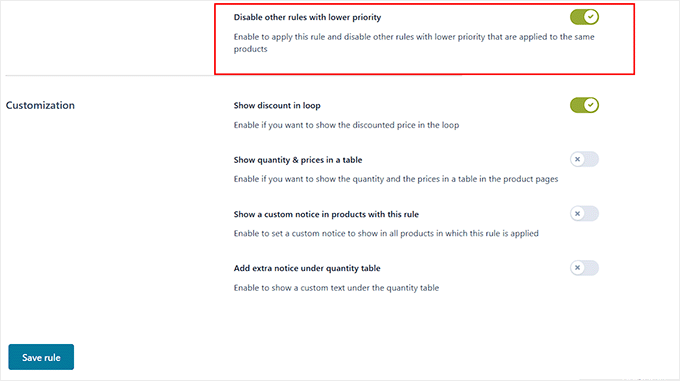
Now before you save, there’s one final setting worth paying attention to: Disable other rules with lower priority.
Enabling this makes sure that if this rule is applied, any other dynamic pricing rules with a lower priority (a higher number) are ignored. It’s a simple way to avoid overlapping discounts or unintended pricing conflicts.
You can also toggle the ‘Show discount on loop’ switch to show the discounted price to users.
Once you’re happy with your settings, go ahead and click the ‘Save Rule’ button. Your dynamic pricing offer will now be active and ready to boost conversions on your store.
Tip: Always test your rules in an incognito browser window. If you use a caching plugin like WP Rocket, then you may need to clear your cache for the new pricing rules to appear immediately for all visitors.
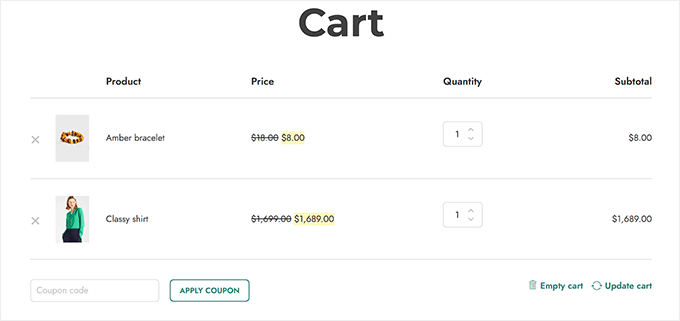
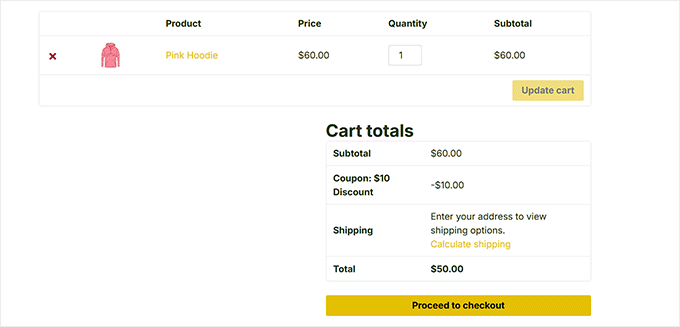
Now, when you visit your store and add the required number of items to your cart, the quantity-based dynamic pricing will be triggered automatically.
You’ll see the discount applied directly in the cart totals, just like this:
Method 2: Using Advanced Dynamic Pricing for WooCommerce (Free Plugin)
If you’re just starting out or only need to set up simple bulk discounts (like ‘10% off if you buy 5 or more’), then Advanced Dynamic Pricing for WooCommerce is a solid choice.
This free plugin is great for basic use cases like quantity-based discounts, cart-based discounts, or simple user role pricing. That is why I recommend it for smaller stores that don’t need complex rules.
Step 1: Install and Activate the Plugin
First, you have to install and activate the Advanced Dynamic Pricing for WooCommerce plugin.
To get detailed instructions, see our tutorial on how to install a WordPress plugin.
Step 2: Create a Dynamic Pricing Rule
Upon activation, head over to the WooCommerce » Pricing Rules page and click the ‘Add rule’ button.
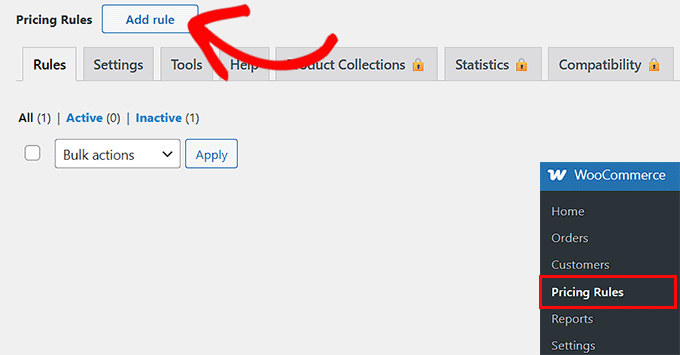
This adds a new rule section to the page. You’ll see that the rule is already enabled by default.
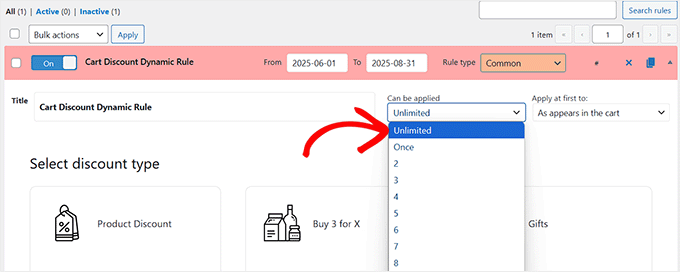
You can now set a schedule for your rule. For example, if you want the discount to apply from June 1 to August 31, simply enter those dates in the start and end fields.
If you don’t want to set a schedule, then you can leave these fields blank.
Next, give your dynamic pricing rule a name. I recommend keeping it simple, clear, and specific, so it’s easy to identify later if you plan to create multiple pricing rules.
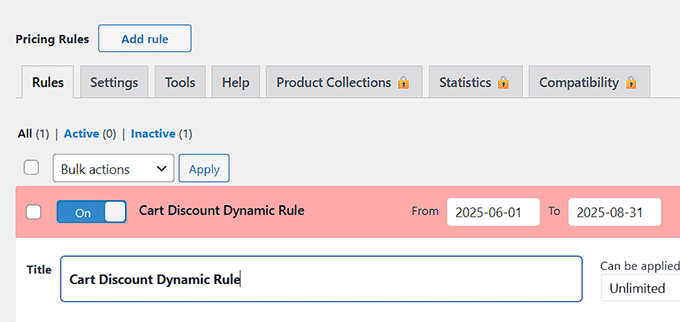
Then, choose how many times the dynamic pricing rule can be applied.
If you want the discount to be available to everyone, then you can leave it set to unlimited.
But if you’re creating a time-sensitive or limited deal—like a cart discount available only to the first 10 customers, then you can enter a specific number instead.
Next, use the dropdown beside it to decide which products in the cart the rule should apply to. You can choose to apply the discount only to the most expensive product, the cheapest product, or to all items in the cart that meet the condition.
This gives you more control over how the discount is distributed.
Step 3: Select Discount Type
Once that is done, scroll down and select the discount type you want to apply.
The plugin offers several types of dynamic pricing rules, including:
Product Discount
Buy X for Y (e.g. 3 for $20)
Free Gifts
Role-Based Bulk Discounts
Standard Bulk Pricing
BOGO (Buy One Get One)
Role-Based Discounts
Cart Discounts
For this tutorial, I’ll focus on the Cart Discount option, but the general settings and structure are very similar across all rule types. Once you understand one, it’s easy to configure the rest.
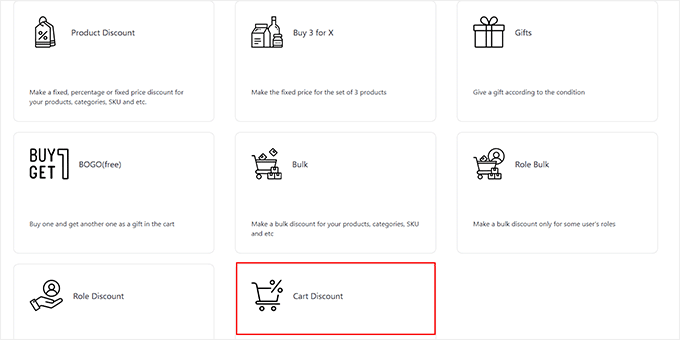
After you select a discount type, new settings will appear on your screen. Here’s where you begin setting up the details of the discount.
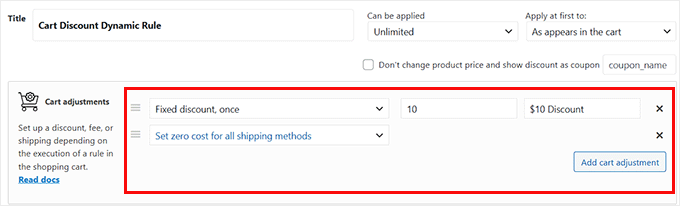
First, choose the discount method. You can apply:
A percentage discount
A fixed discount
Or enable free shipping
After that, enter the discount amount in the field next to it.
For example, if you select ‘Fixed’ and enter 10, then customers will receive $10 off their cart total when the conditions are met.
You can also add a label or name for the discount. This will be shown in the cart summary, so make it something your customers will understand, like “Summer Sale Discount”.
If you want to offer multiple cart discounts within the same rule, then you can click the ‘Add cart adjustment’ button to create another adjustment.
For example, your first rule could give $10 off, and your second could offer free shipping under different conditions.
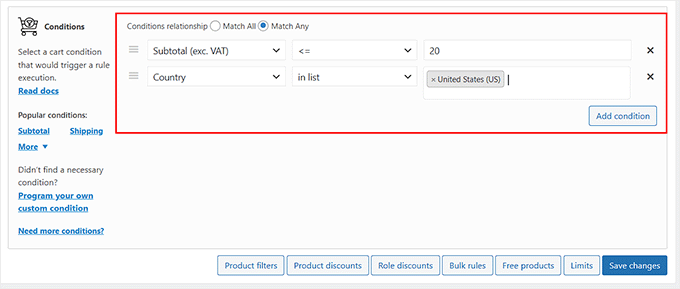
Now scroll down to the ‘Conditions’ section. This is where you define what needs to happen for the discount to be applied.
You can trigger discounts based on things like:
Cart subtotal
Whether the user is logged in
Specific user roles (e.g., subscribers, VIP customers)
Product categories or tags in the cart
Shipping country
Specific date and time ranges
For this example, I’m using the cart subtotal condition.
Once selected, then choose the comparison method—such as greater than, equal to, or less than—and enter the minimum amount needed to trigger the discount.
For instance, if you want the discount to apply to orders over $100, then you should set the condition to ‘greater than or equal to’ and enter 100.
You can also add multiple conditions if you have multiple cart adjustments.
For example, you might offer free shipping to certain countries. This is useful when you want tighter control over who qualifies.
Step 4: Activate Dynamic Pricing
Once you’ve added all your conditions, click the ‘Save Changes’ button to activate the rule. You can repeat this process to create as many dynamic pricing rules as you like.
When you’re finished, visit your website, add items to the cart, and test the checkout flow. You’ll see your new cart-based dynamic pricing rule in action, applied automatically when the conditions are met.
Bonus Ways to Promote Your Dynamic Pricing Offers
Creating dynamic pricing rules is a great start, but they won’t boost conversions unless customers actually see them.
In my experience, the best-performing stores don’t just rely on discounts. They actively promote them across key touchpoints like product pages, emails, and popups.
Here are five effective ways to make sure your dynamic offers get noticed and drive results.
1. 💬Show Targeted Popups: Use OptinMonster, the best conversion optimization toolkit for WordPress, to create floating bars, popups, or slide-ins that highlight your dynamic offers. You can show the message based on cart contents, time on site, or user behavior. For example, show a “Buy 3, get 15% off” popup when someone adds two items to their cart.
2. 📧Mention Discounts in Email Campaigns: You can send emails to highlight new pricing rules, promote time-limited discounts, or remind users about exclusive member pricing.
3. 🎨Create Custom Checkout Pages: Create a dedicated sales, cart, and checkout page with SeedProd, the best drag and drop website builder for WordPress. You can showcase your offer clearly, remove distractions, and even add a countdown timer to build urgency.
4. 🛒Clearly Display Discounts: Make sure your theme and plugin settings are configured to clearly show the original price, the discount, and the new total in the cart and at checkout. This transparency builds trust and reduces cart abandonment.
This will help you drive more sales, boost order values, and keep your offers front and center.
Frequently Answered Questions About Dynamic Pricing
Here are some questions frequently asked by our readers about WooCommerce dynamic pricing:
Can I set different prices for logged-in users or specific user roles in WooCommerce?
Yes, you can set different prices for logged-in users or specific user roles in WooCommerce.
Most dynamic pricing plugins, like YITH Dynamic Pricing or Advanced Dynamic Pricing for WooCommerce, let you create pricing rules based on user roles.
This means you can offer exclusive discounts to wholesale customers, VIP members, or even subscribers, while keeping regular pricing visible to guests.
Will dynamic pricing work with variable products?
Dynamic pricing works perfectly with variable products in WooCommerce.
Both free and premium plugins support applying pricing rules to either specific variations or all variations of a product. When setting up your rule, just make sure you’re targeting the correct variation or parent product, depending on your pricing strategy.
Do dynamic pricing rules apply automatically at checkout?
Once your dynamic pricing rules are active, they apply automatically based on the conditions you’ve set—such as quantity, subtotal, user role, or product category.
Customers will see the discount applied in the cart and at checkout, with no need to enter a coupon code or do anything manually.
I hope this article helped you learn how to set up dynamic pricing in WooCommerce. You may also want to see our tutorial on how to speed up WooCommerce performance and our beginner’s guide on converting WooCommerce visitors to customers.
If you liked this article, then please subscribe to our YouTube Channel for WordPress video tutorials. You can also find us on Twitter and Facebook.